Exam Viewing Page - Copy this React, Tailwind Component to your project
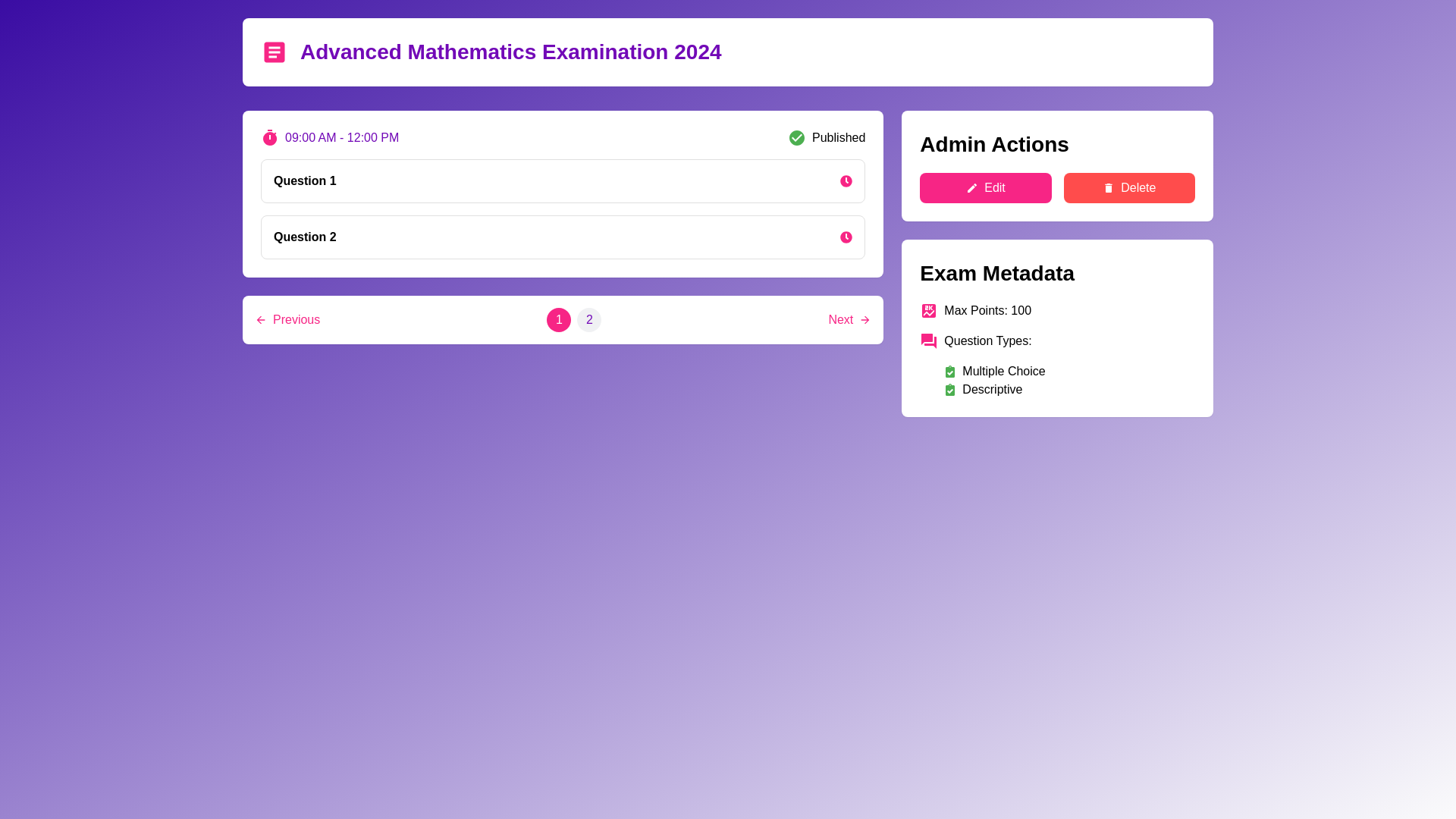
Design a modern, fully responsive web page for viewing a specific exam (question paper) in the admin panel. The design should be sleek, minimal, and professional, with a focus on readability and user experience (UX). Use React Icons extensively for intuitive navigation and interactions. Layout and Design: Color Scheme: Use a purple indigo theme with shades of violet, lavender, and indigo for a modern and clean appearance. The background should be a subtle gradient from indigo to a lighter shade of purple, giving a smooth and professional feel. Typography: Use clear, easy to read fonts. The primary font should be a sleek, sans serif font like "Roboto" or "Inter," with proper spacing for a clean look. Spacing and Alignment: Ensure consistent padding and margins for a balanced layout. Use TailwindCSS for flexible grid layouts that adjust for mobile, tablet, and desktop views. Header (No Header Code, Just Description): The page should have a clear header with the exam title prominently displayed at the top. The header should also include an icon, such as MdArticle from React Icons, next to the title to signify it's an exam/question paper. The title should be clickable, leading to the exam details page. Main Content: Exam Details Section: Display the exam title and exam date and time (Start Time and End Time) clearly. Use MdTimer from React Icons to indicate the time and show the start and end times in a visually distinct, yet professional style. Display a countdown timer (if the exam is live or upcoming) and show how much time is remaining for the exam to start or finish. Question List Section: Use accordion style collapsible sections for each question. This allows the admin to easily toggle between questions. For each question, display: Question text in bold and readable font. Time allocated for each question with an icon, such as FaClock, next to it. Display the options clearly as a list, with each option's text shown as a clickable button or radio button. If the question includes an image, it should be displayed in a card with proper spacing and a light border to make it visually appealing. Include an indicator for the correct option marked as "Correct" using a check circle icon from React Icons to show the answer key for the admin. Question Navigation: Provide a fixed navigation bar at the top or bottom (depending on design preference) that allows the admin to jump between questions, labeled with question numbers. Include pagination for large question papers, showing a previous and next button with arrow icons (MdArrowForward, MdArrowBack), allowing the admin to easily navigate between questions. Question Paper Status: Display the paper status (Published/Not Published) clearly in a card or banner with color coded icons. Published: Green circle with a "check" icon (MdCheckCircle) Not Published: Red circle with a "cross" icon (MdCancel) Use a badge or small indicator for marking whether the quiz is a fast quiz or a regular exam. Admin Action Buttons: Provide Edit and Delete buttons for the admin to manage the question paper. Use icons like MdEdit for editing and MdDelete for deleting the question paper. Place these action buttons in a floating action bar or a bottom right corner of the screen for easy access. Exam Paper Metadata: Display other metadata about the exam, such as max points and question types, in a well organized panel with icons (MdScore for points, MdQuestionAnswer for types). Ensure that this section is visually separated from the question list for clarity. Responsive Design: Mobile View (Small Screen Devices): Use a single column layout with collapsible question sections for better readability on mobile devices. All interactive elements (buttons, options, etc.) should be large enough for touch interactions. The question list should become a vertical stack with each question card expanding on click. Tablet View (Medium Screen Devices): Maintain a two column layout where the question paper metadata is displayed alongside the questions. Ensure that the UI adapts well to various tablet screen sizes. Use tabs or collapsible panels for organizing the question sections and time limits. Desktop View (Large Screen Devices): Use a multi column layout, with the metadata, question list, and time information clearly displayed in separate sections. Make sure there is ample space between sections to avoid clutter. Icons: MdArticle for the exam title. MdTimer for showing time details. FaClock for each question’s time limit. MdCheckCircle for marking the correct option. MdArrowForward and MdArrowBack for navigation buttons. MdEdit for the edit action. MdDelete for the delete action. MdCheckCircle for marking the status (Published or Not Published). FaClipboardCheck for displaying the metadata or other administrative information. Animations and Transitions: Use subtle animations for elements like question expansion and collapsing, icon transitions when toggling between views (published or not), and smooth hover effects on buttons and options to enhance the interactivity and user experience. All transitions should be smooth and fast, using CSS transitions or TailwindCSS animations. Usability and Accessibility: Ensure high contrast between text and background for better readability. Implement ARIA roles for accessibility, ensuring screen readers can properly read out question options, times, and metadata. Use clear error messages or tooltips for forms and actions, such as invalid times or missing required fields. Interactivity: Live Updates: If the exam is a real time quiz, provide the option for live updates for each question, showing which question the student is currently on, their remaining time, and the number of questions answered. Forms and Validation: Implement proper input validation when the admin edits any question or sets the exam’s details. Provide clear error messages using icons or text to guide the user.