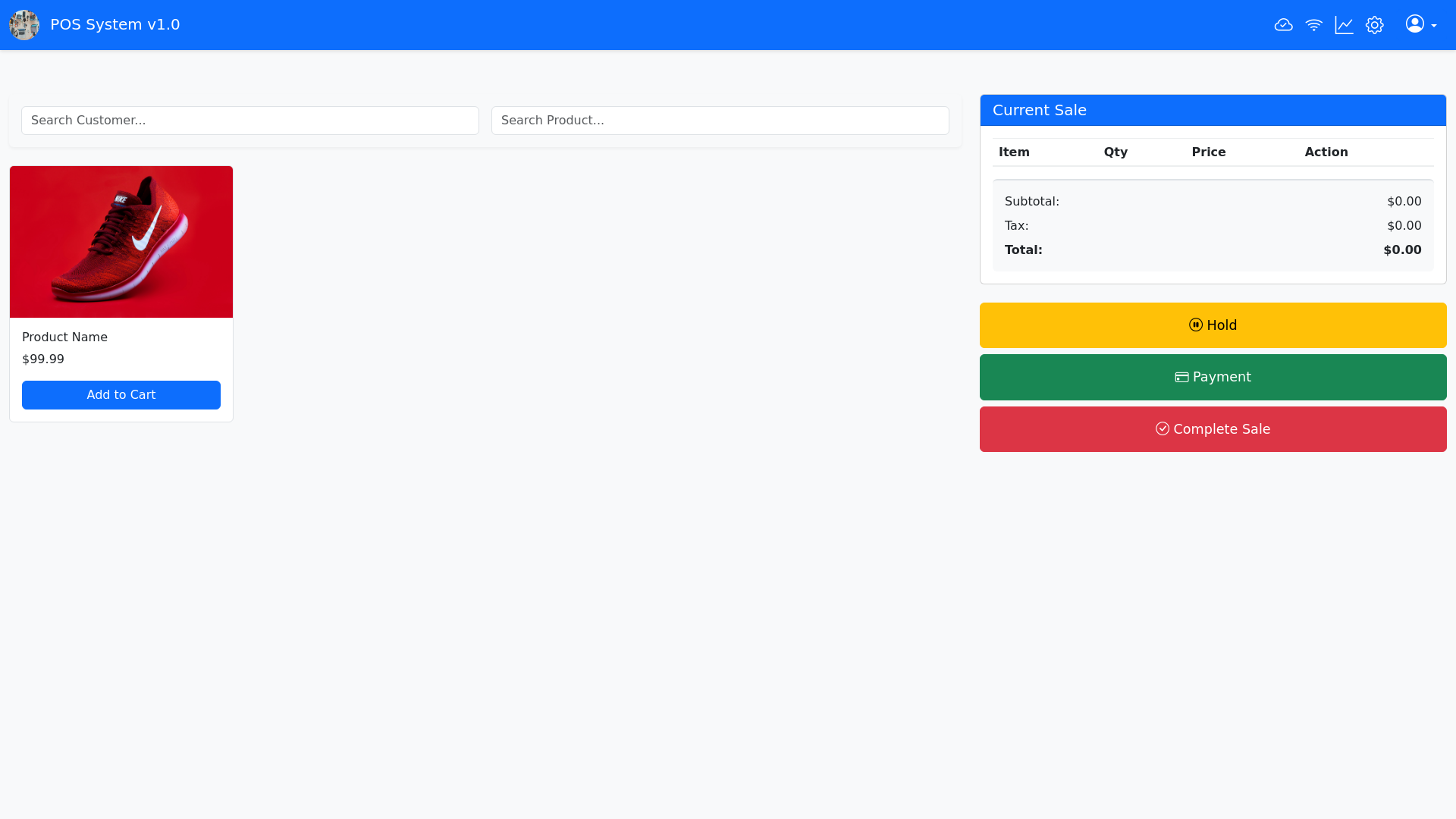
P O S System Interface - Copy this Html, Bootstrap Component to your project
🧾 Web POS Interface – Feature Specification 1. Header Bar (Top Navigation) A fixed bar across the top of the screen for navigation and system status. Brand/Logo (left aligned): Displays your company or POS software logo. Location & Version Info: e.g., "Brooklyn Default POS v3.30.2" Icons (right aligned): Cloud Sync Status Network Signal Indicator Reports/Receipts Shortcut Settings Icon User Profile (e.g., “Michael K.” with dropdown for logout/profile) 2. Customer & Product Search Panel Search and identify customers and products. Customer Search Input – Auto suggest dropdown to search existing customers. Product Search Input – Lookup product by name or code. Customer Profile Card: Name (e.g., Jane Doe) Loyalty Program Status Store Credit / Balance Reward Points Visit Count Tabs/Buttons: Customer Card (yellow button) Purchase History (blue button) 3. Cart / Sales Summary Panel Displays selected products and running totals. Cart Table: Columns: Name, Code, Quantity, Price Editable quantity fields or remove item button Total Summary Section: Total Tax Net Amount Footer Action Buttons: Optionally include buttons like “Clear Cart”, “Hold Sale”, or “Return” 4. Product Category & Quick Select Grid Grid of product categories and popular products. Product Categories (Top row): E.g., Shirts, Dresses, Jeans Product Thumbnails with Prices: Quick add products with a single tap Display name, image, and price (e.g., Red Maxi Dress $50.00) 5. Sales Operations Panel (Action Buttons) A vertical or grid menu for all sale related functions. Transaction Controls: 🕑 Recent Sales ⏳ Pending Sales 📦 Pickup Orders 📝 Layaways 📅 Close Day 📊 X Report Cashier Controls: 💵 Cash In/Out 🧾 Stock & Price Check ⏱ Clock In/Out 🎁 Check Gift Card Balance 🎟 Coupons 🧾 Last Receipt 💰 Cash Drawer Sale Management: ➕ New Sale 💾 Save Sale 📄 Save as Order 🛍 Save as Layaway 🧮 Discount 🧾 Tax Exempt 📝 Notes 📢 Promotions 🚚 Add Shipping 6. Checkout Controls (Bottom Buttons) Bright, high contrast buttons to control the sale. Yellow Button (customizable, e.g., “Hold”) Red Button – SALE: Finalizes and submits the sale Green Button – PAY: Initiates the payment process (cash, card, gift card, etc.) 💡 UI/UX Notes for Web Implementation Use responsive grid layout for product tiles. Sticky header and footer controls for easier tablet use. Use modal pop ups for: Clock in/out Add discounts or notes Payment and receipt options Color coded buttons to reduce errors (e.g., red for irreversible actions like “Sale”). Accessibility friendly design: high contrast, keyboard nav, and screen reader compatibility. for my pos system